
Tab 1 of 6
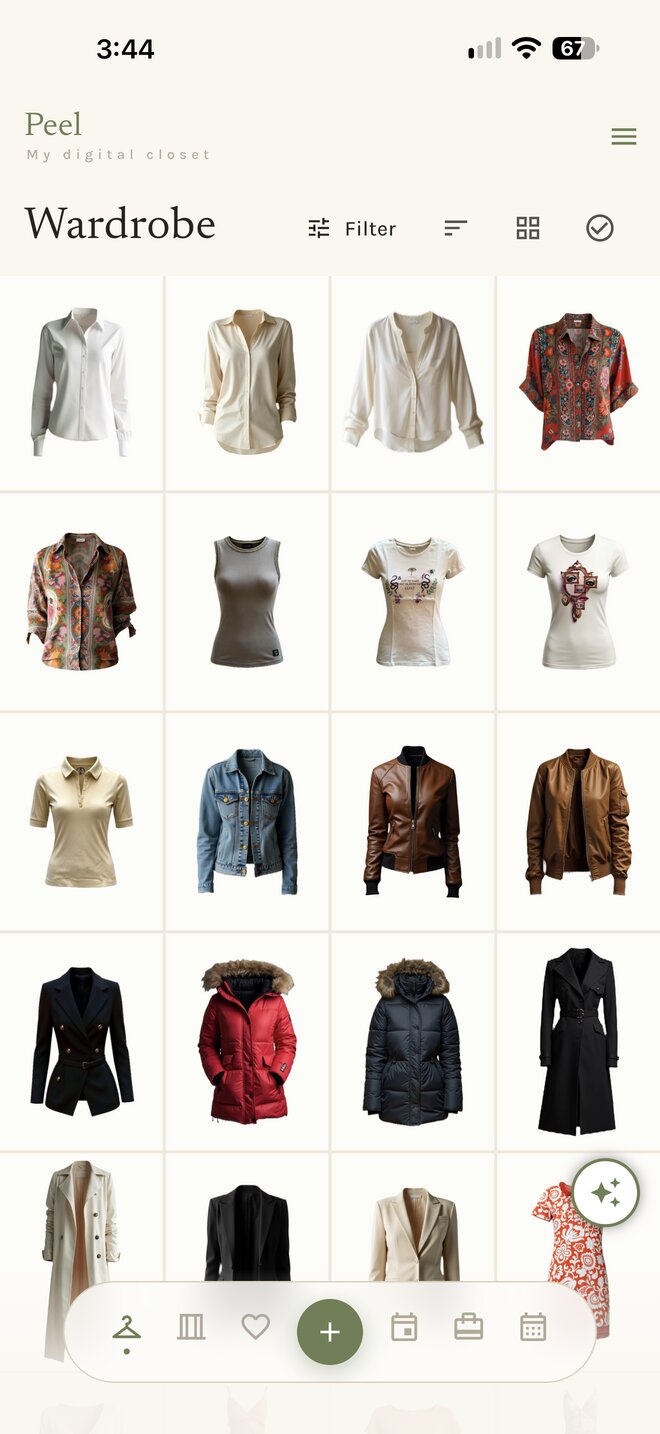
Wardrobe
From the built-in tour
- You are in the Wardrobe tabPress + to add clothes
- Tap an item to view and edit it
- Hold a finger on an item for its quick menu
- Pinch the grid to resize the tiles
- The top buttons organise what you see — filter, sort, change the view, or select many at once
What it does
Wardrobe, section by section.
Add clothes
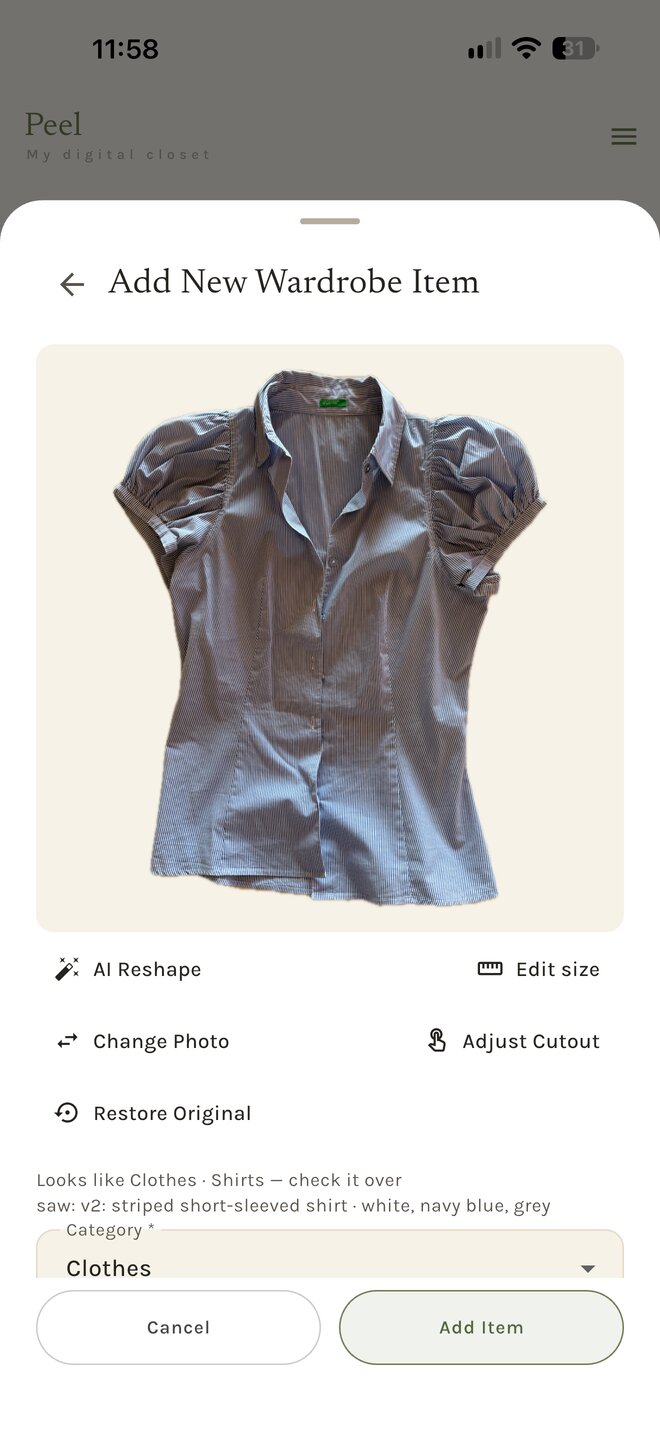
Take a photo of a garment or import one from your library. The background goes automatically, and when Peel recognises the piece it suggests a category and a season for you to confirm. Add the price if you want cost-per-wear later.
Optional: reshape it
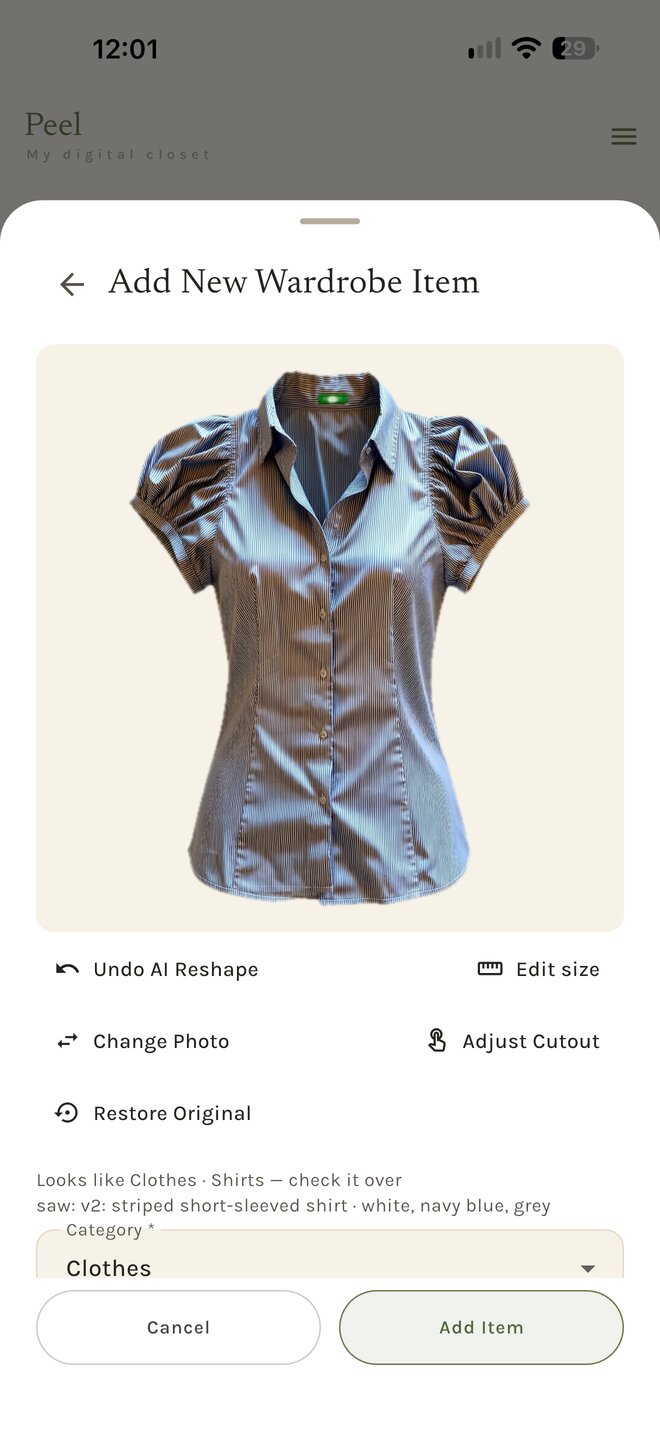
AI Reshape redraws the cutout as if someone were wearing it: pressed, in shape, seen straight on. Your original photo is kept. Needs Apple Intelligence, iPhone 15 Pro or newer.
Tap an item to view and edit it
Every piece has its own page: the cutout, its category and season, brand, colour and price, how often you have worn it and what it costs per wear. Edit anything, adjust the cutout, or change the photo.
View and edit an item · 12 s
Hold a finger on an item for its quick menu
The quick menu puts the common actions one press away: add the piece to an outfit, mark it worn today, favourite it, or move it to another closet.
Quick menu · 7 s
Pinch the grid to resize the tiles
Two fingers change how many pieces fit across the screen. Bigger tiles to look closely, smaller ones to see the whole closet at once.
Resize the grid · 9 s
The top buttons
Four buttons above the grid organise what you see: filter, sort, change the view, select. A big closet becomes the one piece you are looking for in two taps.
The + button adds for the tab you are in. In the Wardrobe tab, + adds new items.
Seven themes
Wardrobe, in your theme.
Pick a theme and the screens below change with it. Showing Penthouse.
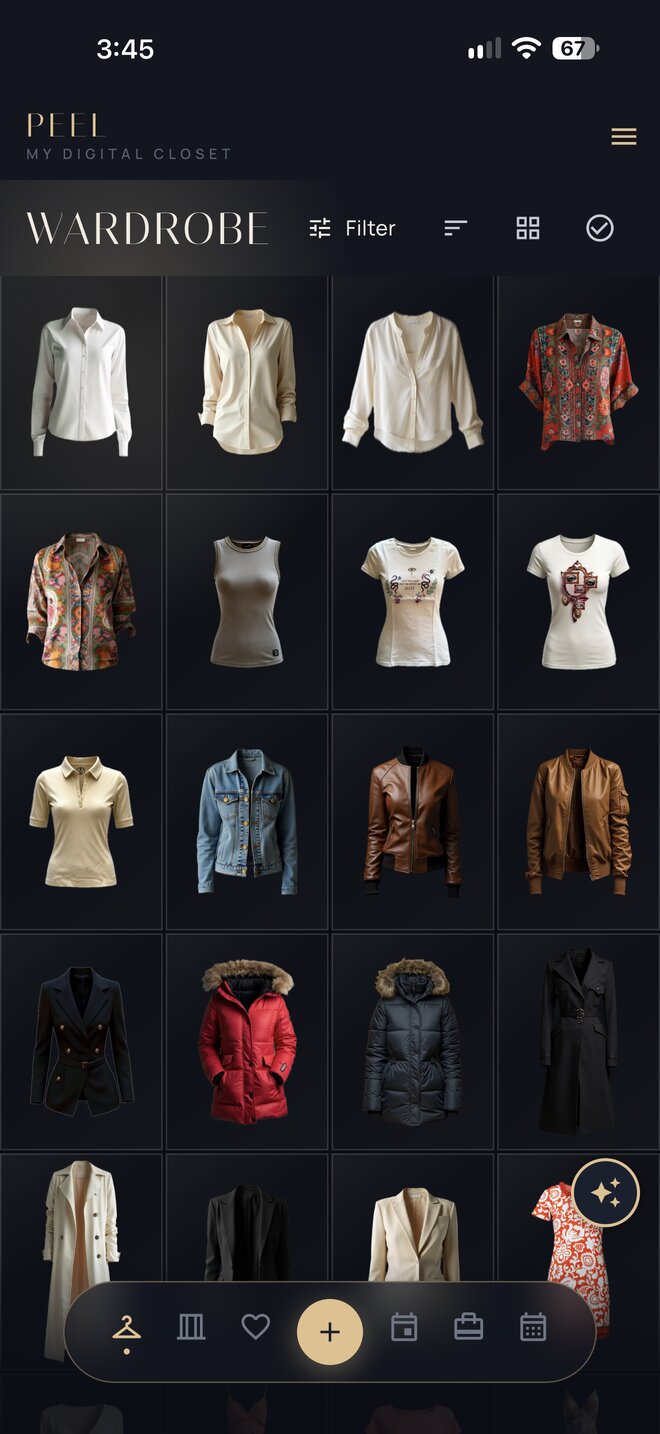
Wardrobe grid 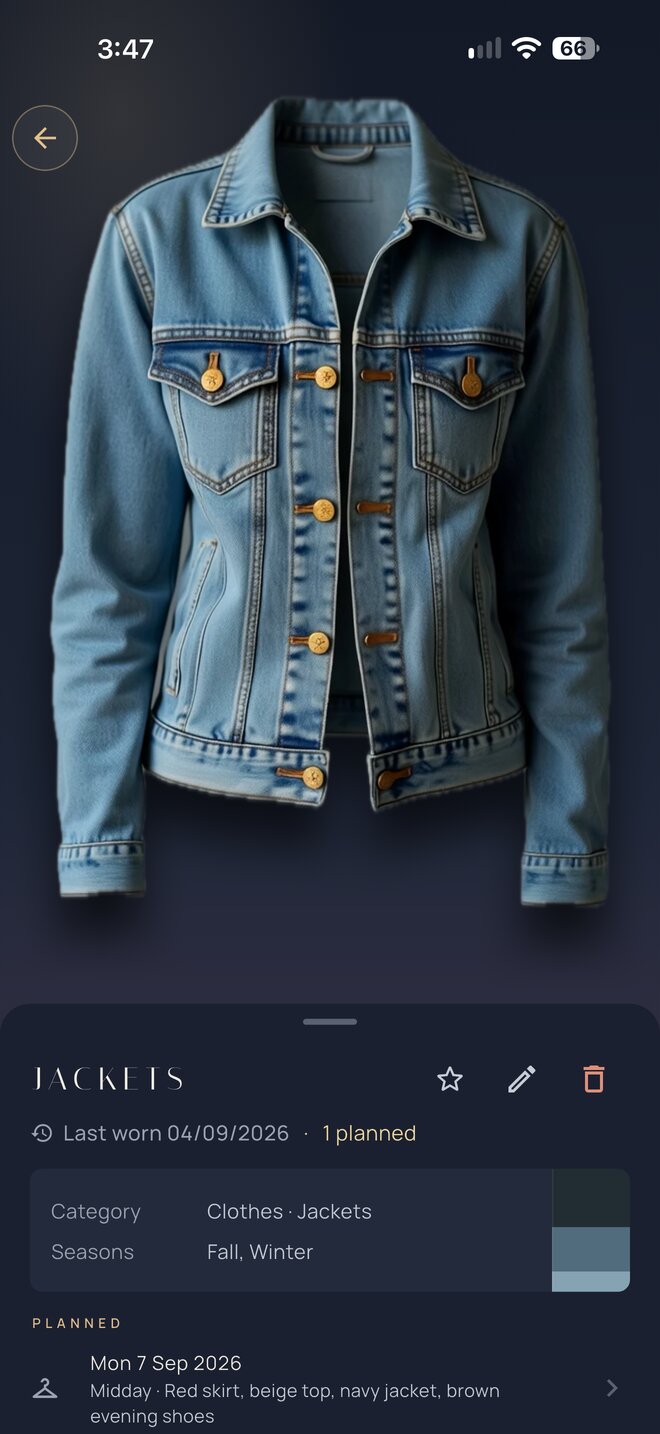
Item 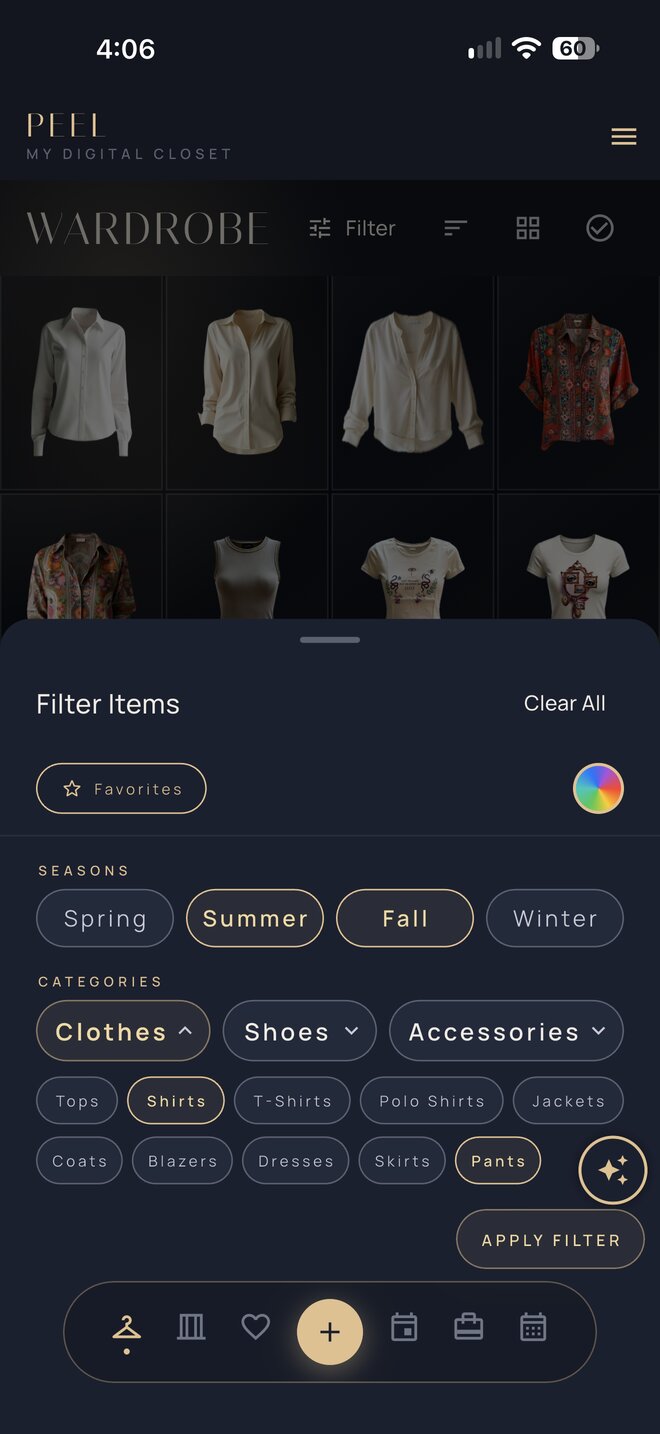
Filters